
Control Your Individual Phone Settings from Anywhere
POPP’s Hosted VoIP Phone System User Portal gives employees the flexibility to manage their own settings for their IP desk phone and for their softphone apps on a computer and/or mobile device. Perfect for remote, hybrid, and mobile teams.
TIP: Your POPP Hosted VoIP Phone System comes with FREE FULL SERVICE administration and changes, and we encourage you to let us handle your changes so we can save you the time and frustration of having to do it yourself!
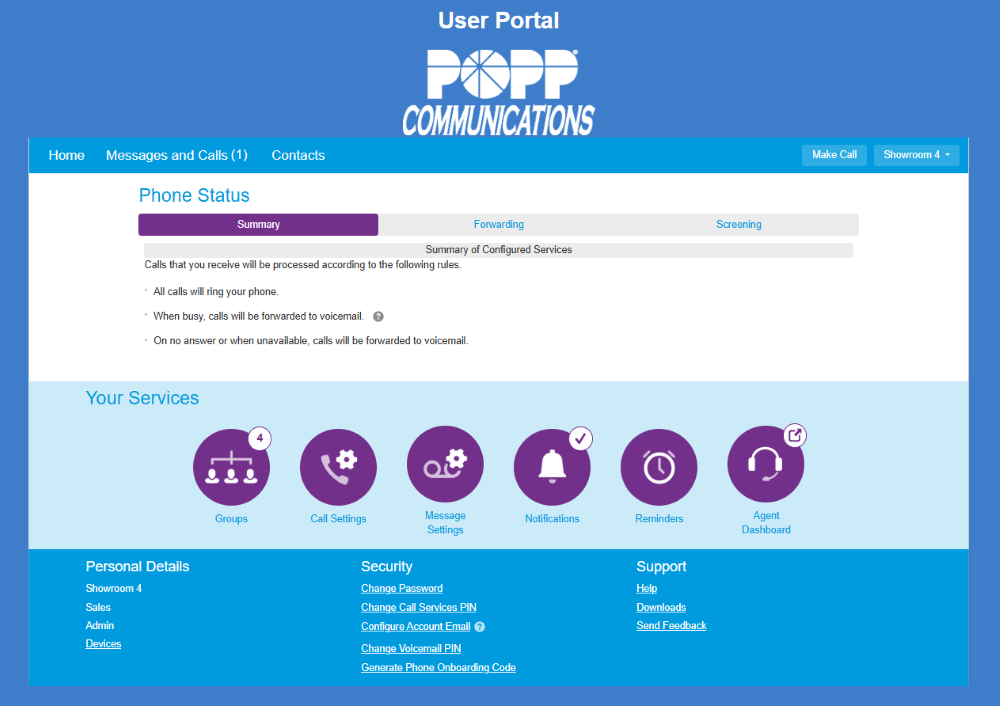
What You Can Do in the User Portal
Home / Phone Status
- Set up call forwarding (Immediate, Busy/No Answer, Unavailable)
- Enable call screening (Do Not Disturb, Selective Rejection, Anonymous Rejection, Priority Call)
Messages & Calls
- Listen to voicemails
- Review call history (missed, dialed, received)
Contacts
- View and set contacts
- View and set speed dials
- View system extension directory
- View system short codes
Personal Details
- Configure IP desk phone programmable keys
Security
- Change your account password
- Set up account email
- Change your voicemail PIN
Make Call
- Place outbound calls from your business number using any phone. Enter the number you want to call and the number you want to be reached at—our system connects you and displays your business caller ID.
Groups
- View hunt group membership
- Log in/out of groups
Call Settings
- Adjust caller ID settings
Message Settings
- Record and change greetings
- Manage message playback options
- Set up voicemail to email
Notifications
- Manage message waiting notifications (phone, email, outdial)
Reminders
- Enable call reminders
Agent Dashboard (only with Hosted Call Center)
- Log in/out of queues
- Change agent state (Available, Break, DND, etc.)
- View call queue information:
- Predicted caller waiting time
- # of callers waiting
- # of logged-in members
Built for Flexibility
The User Portal allows your team to work from anywhere and customize their call experience within the system.
Access can be enabled or restricted by POPP or by your designated system administrator.
TIP: Many POPP clients use the portals to view settings, and rely on our team to make changes for them.
Support Is Always Available
Even with self-service tools, you’re never on your own:
- See our User Portal Reference Manual (31 pgs.) here
- You have FREE remote support for changes
- You have expert POPP consulting for system design and changes
Access the User Portal
Login URL: portal.popp.com
(Email or phone number + password required)
Need help updating your settings?
We’re here to help – just give us a call.